
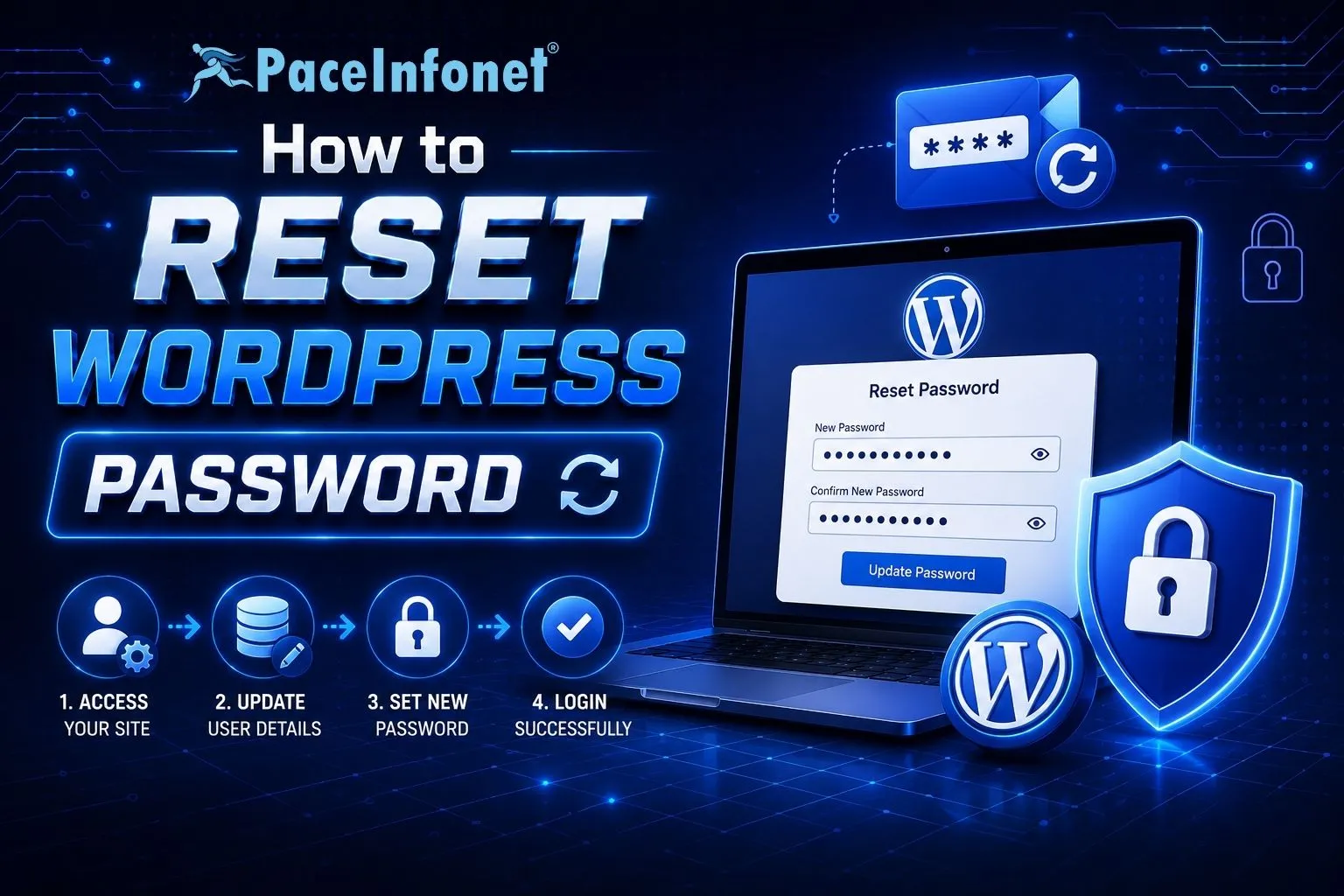
How to Reset Your WordPress Password: A Step-by-Step Guide
Forgetting your WordPress password is a common issue, but recovering access to your website is quick and straightforward. Whether you’ve lost your login credentials or want to improve your website security by changing your password, WordPress offers several safe and reliable methods to reset it.
How to Reset Your WordPress Password
- Method 1: Reset Password Using the Login Page — Visit your WordPress login page and click “Lost your password?”. Enter your username or registered email address, click “Get New Password”, open the password reset email, create a strong password, and log in again. This is the easiest method if you still have access to your registered email address.
- Method 2: Reset Password from Your Hosting Control Panel — Log in to your hosting control panel and open phpMyAdmin. Select your WordPress database, open the wp_users table, locate your administrator account, edit the user_pass field, choose MD5 as the encryption method, enter your new password, save the changes, and log in with the updated password.
- Method 3: Reset Password Using WP-CLI — If your hosting provider supports WP-CLI, you can reset your administrator password using a simple command through the terminal. This method is commonly used by developers and system administrators because it is quick and efficient.
- Method 4: Reset Password Using File Manager or FTP — Advanced users can temporarily reset their password by modifying WordPress files or using custom scripts through File Manager or FTP. After successfully logging in, remove any temporary files immediately to maintain website security.
| Reset Method | Best Used When |
|---|---|
| Login Page | You have access to your registered email. |
| Hosting Control Panel | Email recovery is unavailable. |
| WP-CLI | You have terminal access to the server. |
| File Manager / FTP | Advanced troubleshooting or emergency recovery. |
Tips for Creating a Strong Password
- Use at Least 12 Characters — Longer passwords provide stronger protection against attacks.
- Mix Uppercase and Lowercase Letters — Combining different letter cases makes passwords harder to guess.
- Include Numbers and Special Characters — Adding symbols and numbers increases password complexity.
- Avoid Personal Information — Never use names, birthdays, phone numbers, or common dictionary words.
- Don’t Reuse Passwords — Use a unique password for every website or online account.
- Use a Password Manager — Store your passwords securely using a trusted password manager.
Why Regular Password Updates Matter
Changing your WordPress password regularly helps improve website security and reduces the risk of unauthorized access. It is especially recommended after installing new plugins, changing administrators, sharing login credentials, or noticing suspicious login activity.
Conclusion
Resetting your WordPress password is simple, whether you use the built-in password recovery option, your hosting control panel, WP-CLI, or phpMyAdmin. The best method depends on the level of access you have to your website.
Keeping your password strong, unique, and updated regularly is one of the easiest ways to protect your WordPress website from unauthorized access and security threats.
Have questions about WordPress hosting, website security, password recovery, domain registration, or hosting solutions?